I wanted to play a game that has an anti-cheat, which unfortunately meant I had to reinstall Windows. I thought about using a VM, but didn’t want to risk my account being banned if it were detected. So I flashed my USB and began the installation - or attempted to. It wouldn’t boot up.
It turned out to be that the USB was faulty which I confirmed by copying over a file and seeing that the checksum was different.
So I needed to find a way to boot without a USB, or any other storage device. I decided to go about it in the most interesting way. There are almost certainly simpler ways I could have done it, but this was mostly for fun and out of curiosity.
netboot.xyz
Enter netboot.xyz. It involves booting into an execution environment which enables the NIC1. Then, it can connect to a server hosting an OS installation image, and boot into it. It’s neat!
Now, setting it up involves changing some settings in the BIOS to disable secure boot, enable the NIC during boot, and enable IPv4 PXE support. Notably, I had to disable IPv6 PXE support because my router’s DHCP server was not issuing correct IPv6 addresses.
From Linux, I added the netboot.xyz EFI image directly into the boot partition, avoiding the need for a USB.
Once I successfully booted into it, I was expecting to just be able to select Windows in the menu and just start installing it. Easy, right?
Well of course, Windows is proprietary. So, you have to manually provide the installation files.
Providing the Windows installation files
On my laptop (still running Windows) I built a WinPE ISO image. WinPE is a small OS used to install and repair Windows, also allowing containing network drivers to install from network storage. I also downloaded the Windows 10 installation ISO online.
My idea was to host the images using my Raspberry Pi. The WinPE image has to be served over HTTP, for which I used the Apache web server.
As for the installation ISO, I had to extract it and serve the files with Samba, which serves files using the proprietary SMB protocol, that Windows uses file sharing.
Once I confirmed I could access the files over the network (using my phone), I booted up netboot.xyz and entered in the of local IP of my Raspberry Pi.
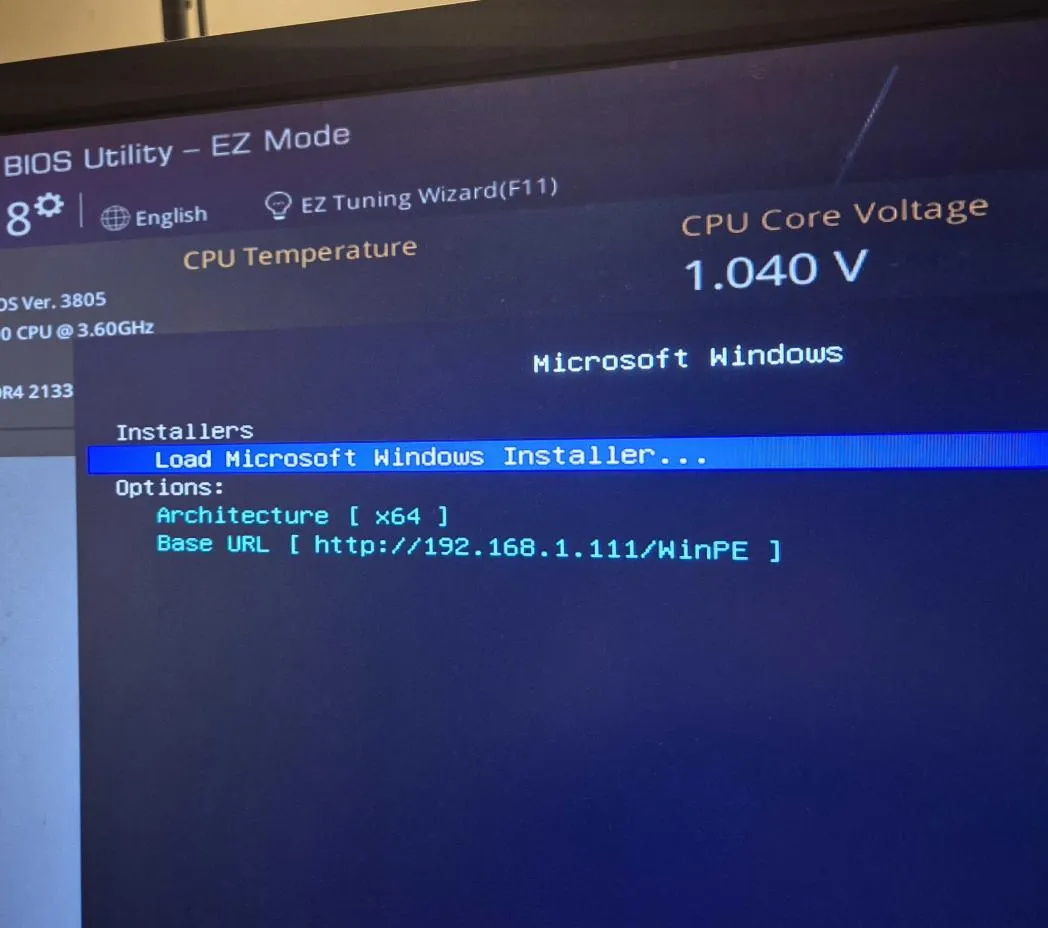
It worked. Awesome. The Windows command prompt in glorious stretched low-resolution. Then, I mounted the Samba network drive.
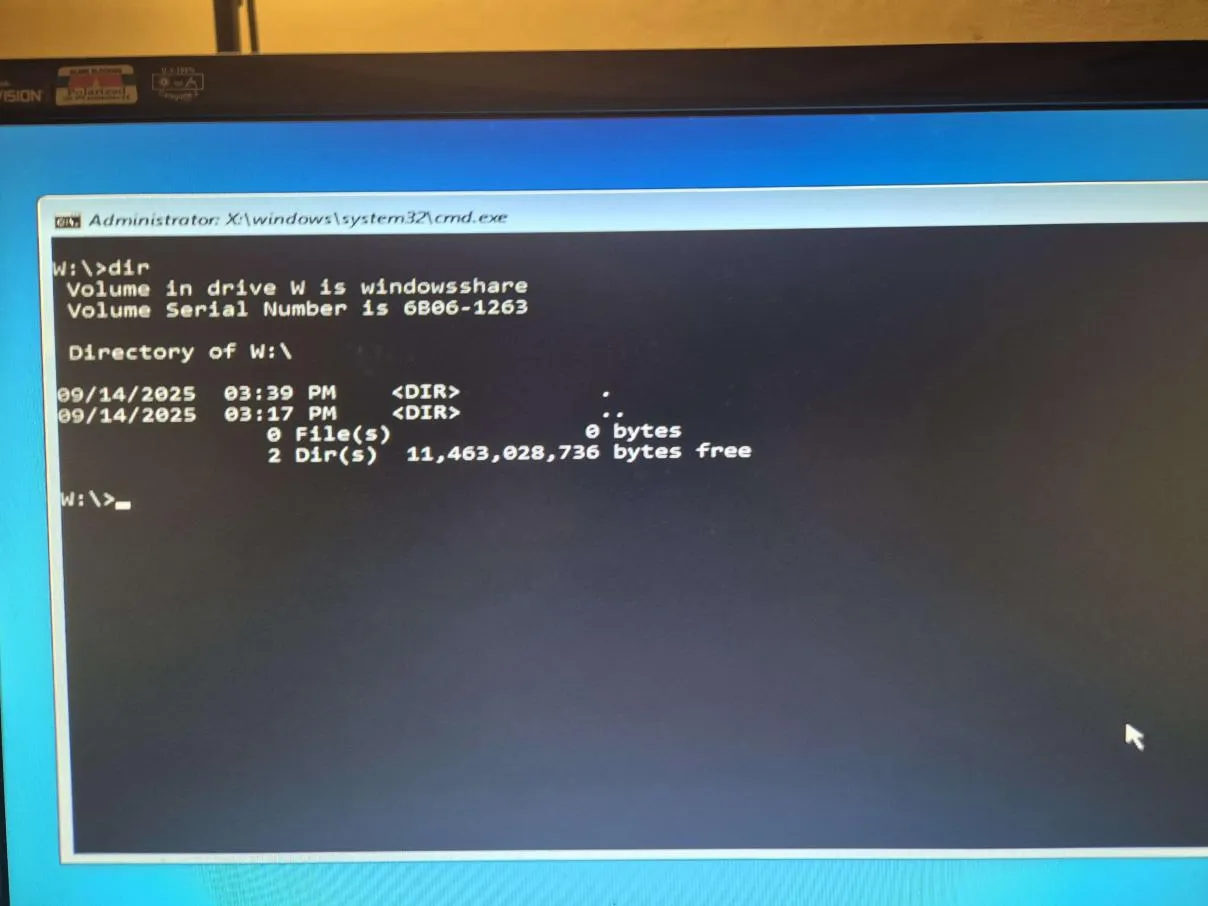
I ran the setup.exe program to start the installation. Quite anticlimactically, I received “Error 0x5”, which apparently means “Access Denied”. Oops, I forgot file permissions are weird on Windows.
It was quickly fixed by ssh’ing into the Pi from my laptop and giving all the files all permissions2 with chmod -R 777 .
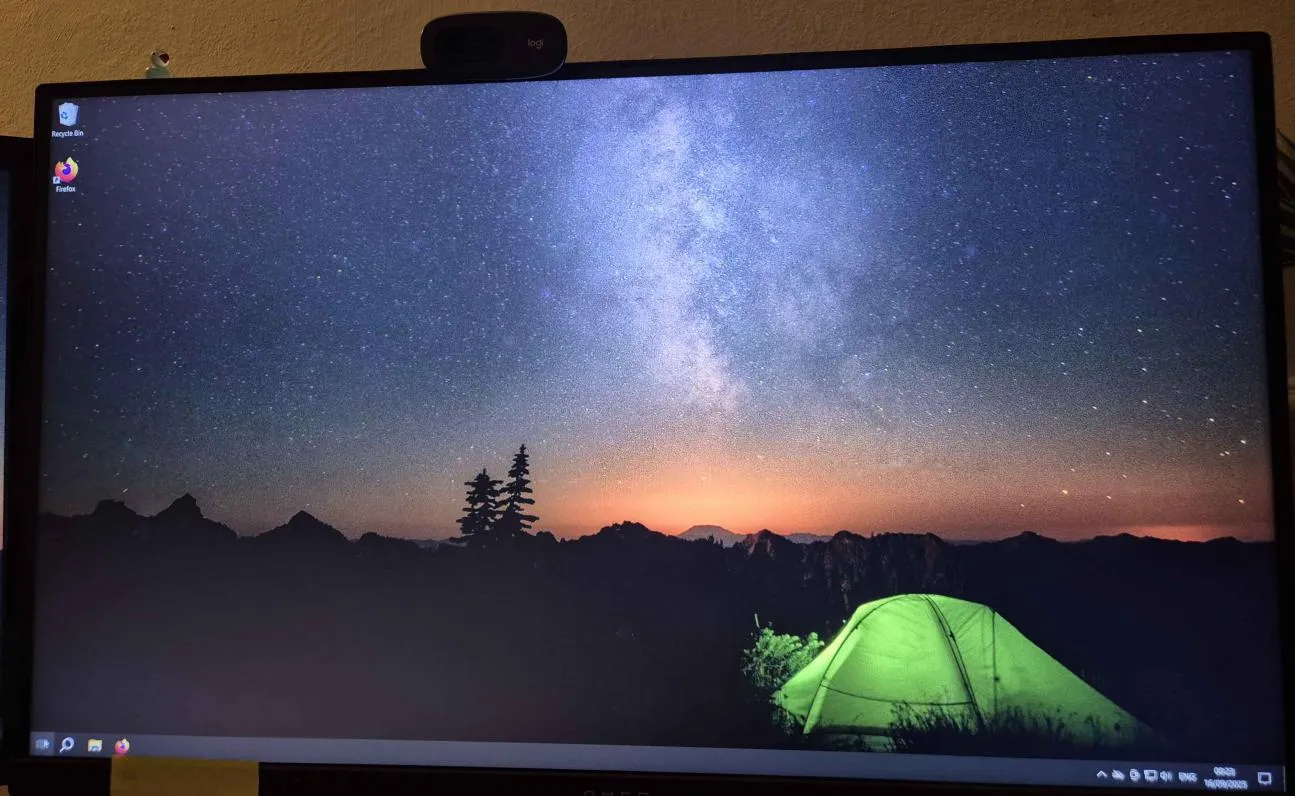
From there, I just had to say no to all the creepy privacy-invading “features”, and five adverts. I also got jumpscared by Cortana randomly starting to talk at one point. Whatever - success!
Footnotes
-
It probably doesn’t really have to be all of them, but I didn’t wanna find out which ones were necessary and which weren’t. ↩